Send your tune to your tuner
straight from your phone
The HP Tuners TDN app lets your tuner read, build, and deliver your calibration remotely -- no shop visit, no laptop. This guide walks you through it the very first time, step by step.
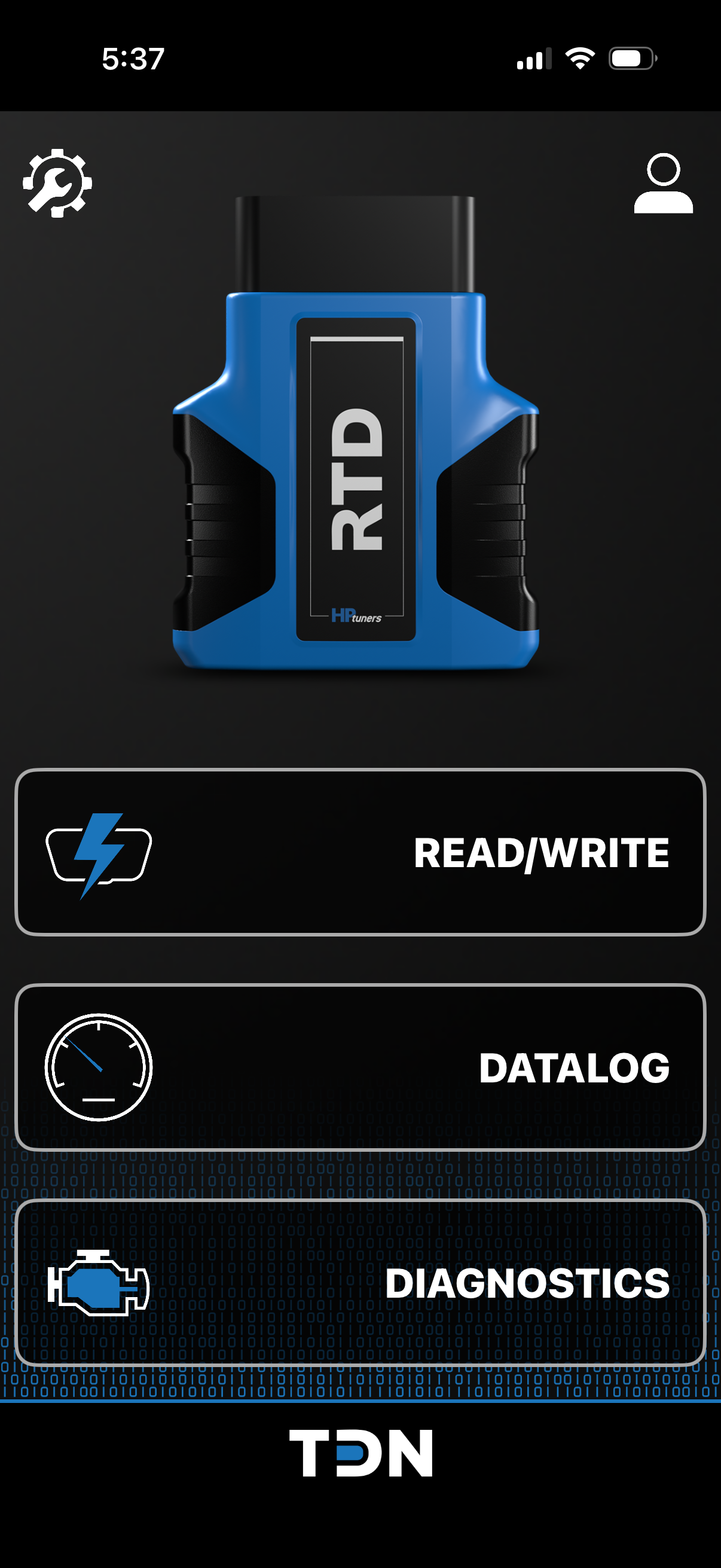
Before you begin Screenshots coming soon
Create your HP Tuners account
Sign up at hptuners.com. You'll use this same login inside the TDN app.
Register your device
Add your MPVI2+, MPVI3, or RTD interface to your HP Tuners account so it's tied to you.
Add credits if needed
Some vehicles need credits to read and write. Purchase them in your HP Tuners account before you start.
Install the TDN app
Download TDN by HP Tuners from the App Store or Google Play, then sign in with your account.
Link your tuner
Open Account, then tap Link Tuner
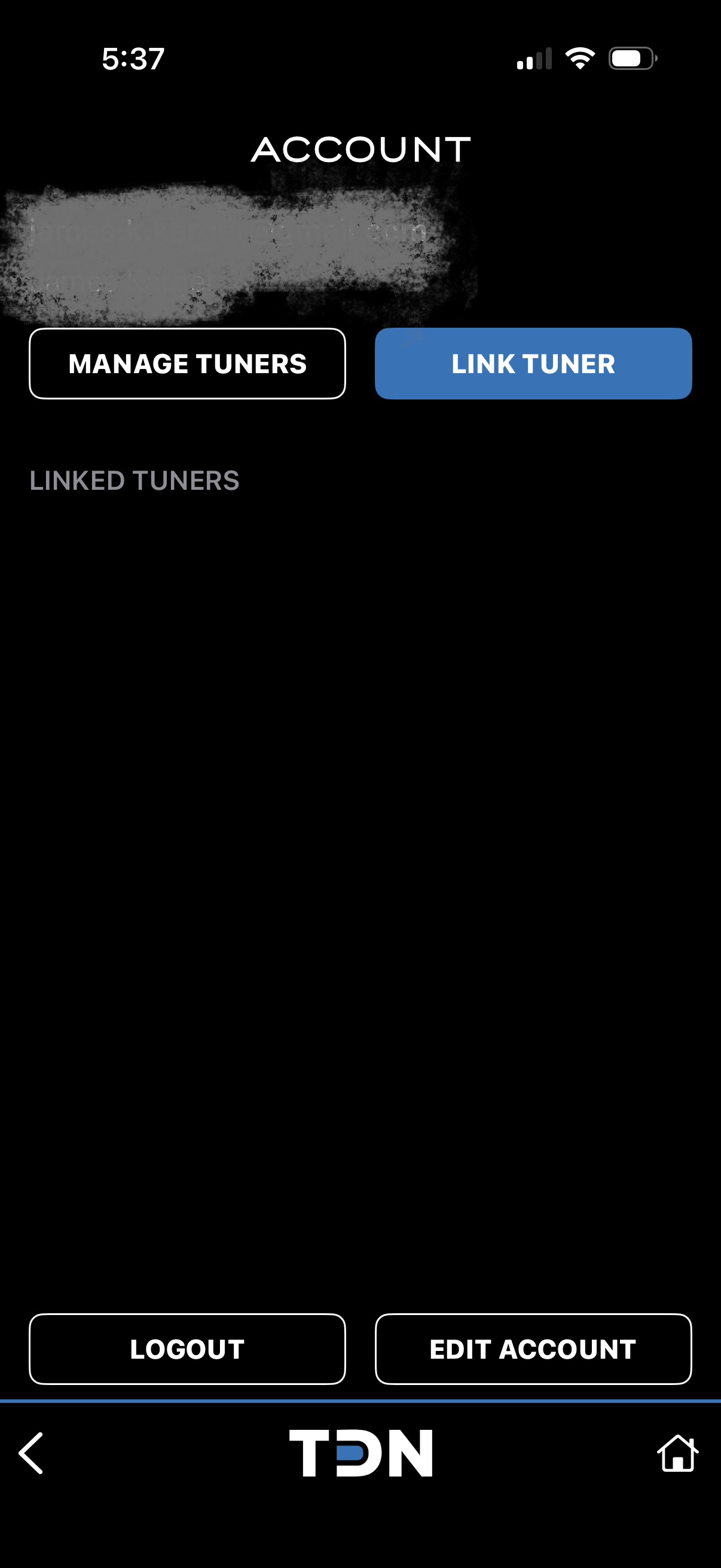
In the TDN app, open the Account tab (the person icon at the bottom). Tap LINK TUNER on the right.
If you haven't linked anyone yet, the Linked Tuners list below will be empty -- that's expected.
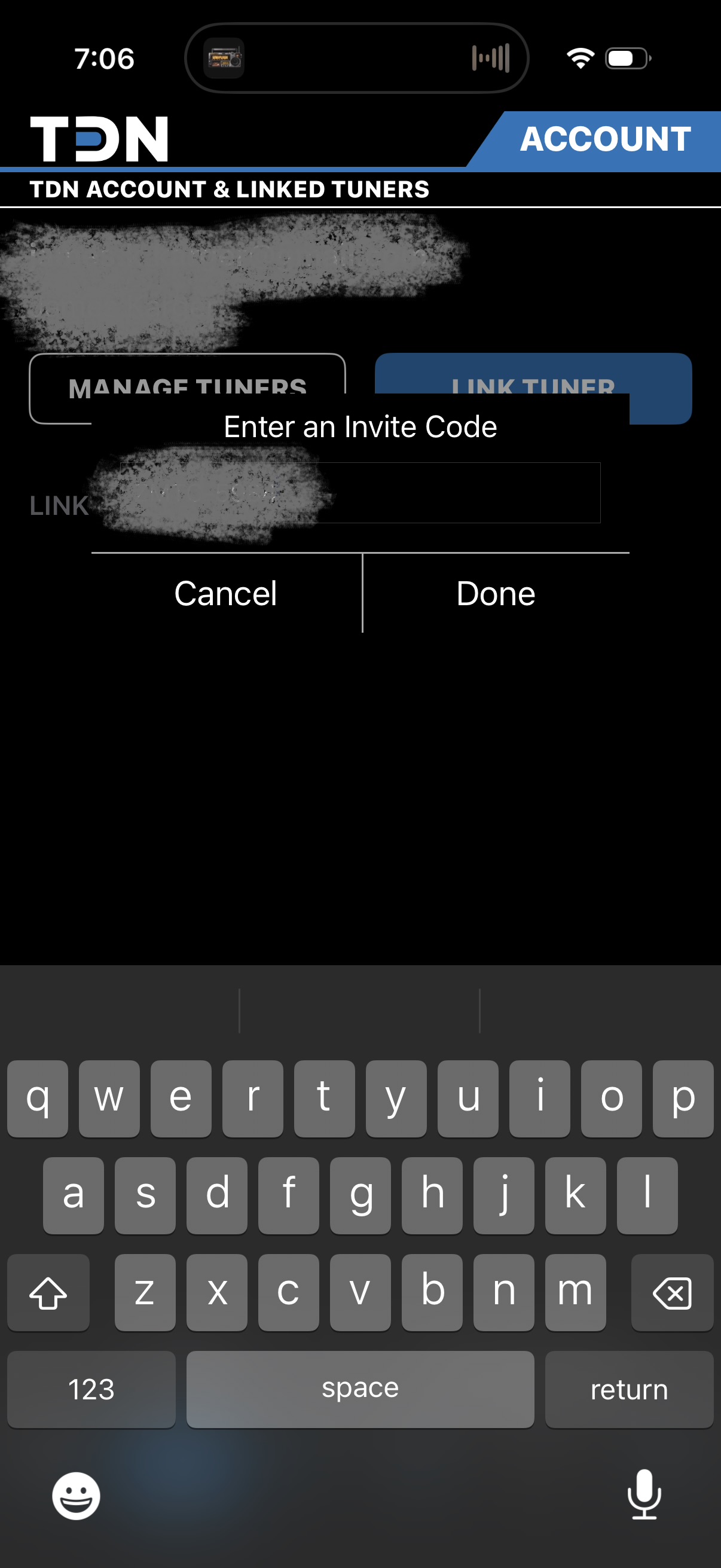
Enter the invite code your tuner gave you
Your tuner will send you a short invite code (it looks like ABCD-1234). Type it in exactly and tap Done.
Don't have a code? Ask your tuner for one -- it's how they connect to your vehicle.
Code accepted -- now wait for the tuner
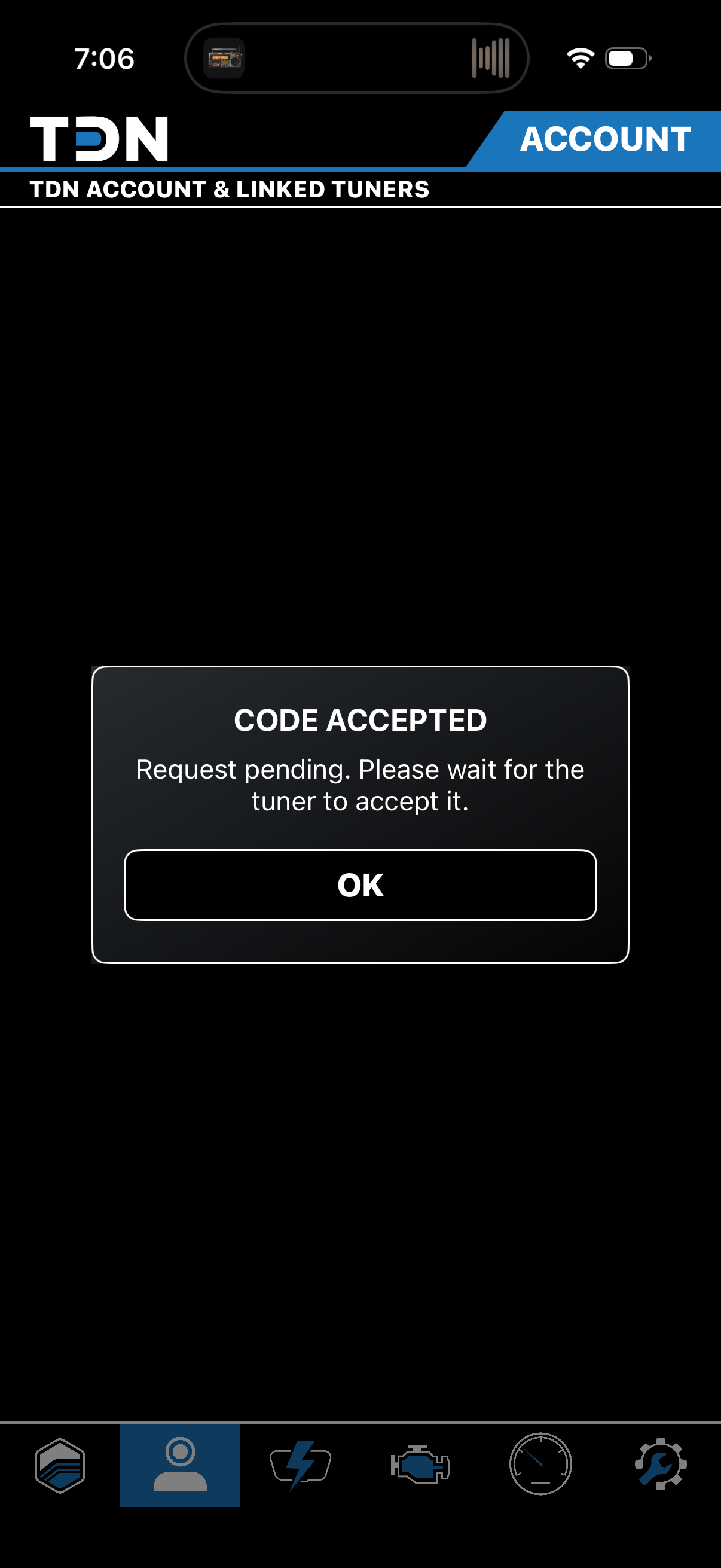
You'll see CODE ACCEPTED -- Request pending. Tap OK. Your tuner just needs to approve the link on their end.
This usually happens quickly. You can close the app and come back.
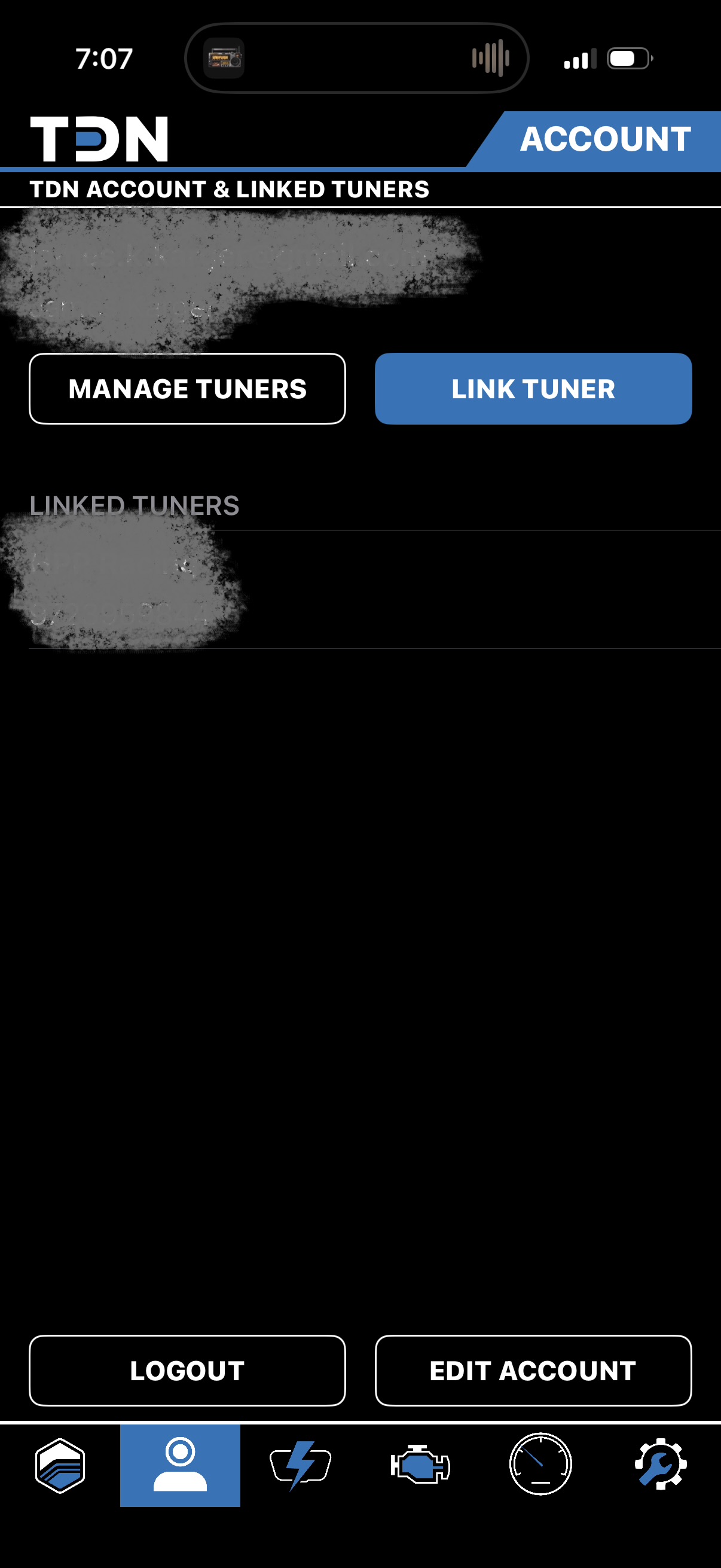
Your tuner now shows up as linked
Once they accept, your tuner appears under Linked Tuners with their name and number. You're paired -- you won't need to do this again.
Read your vehicle and send it over
Open Tunes, then tap Read Vehicle
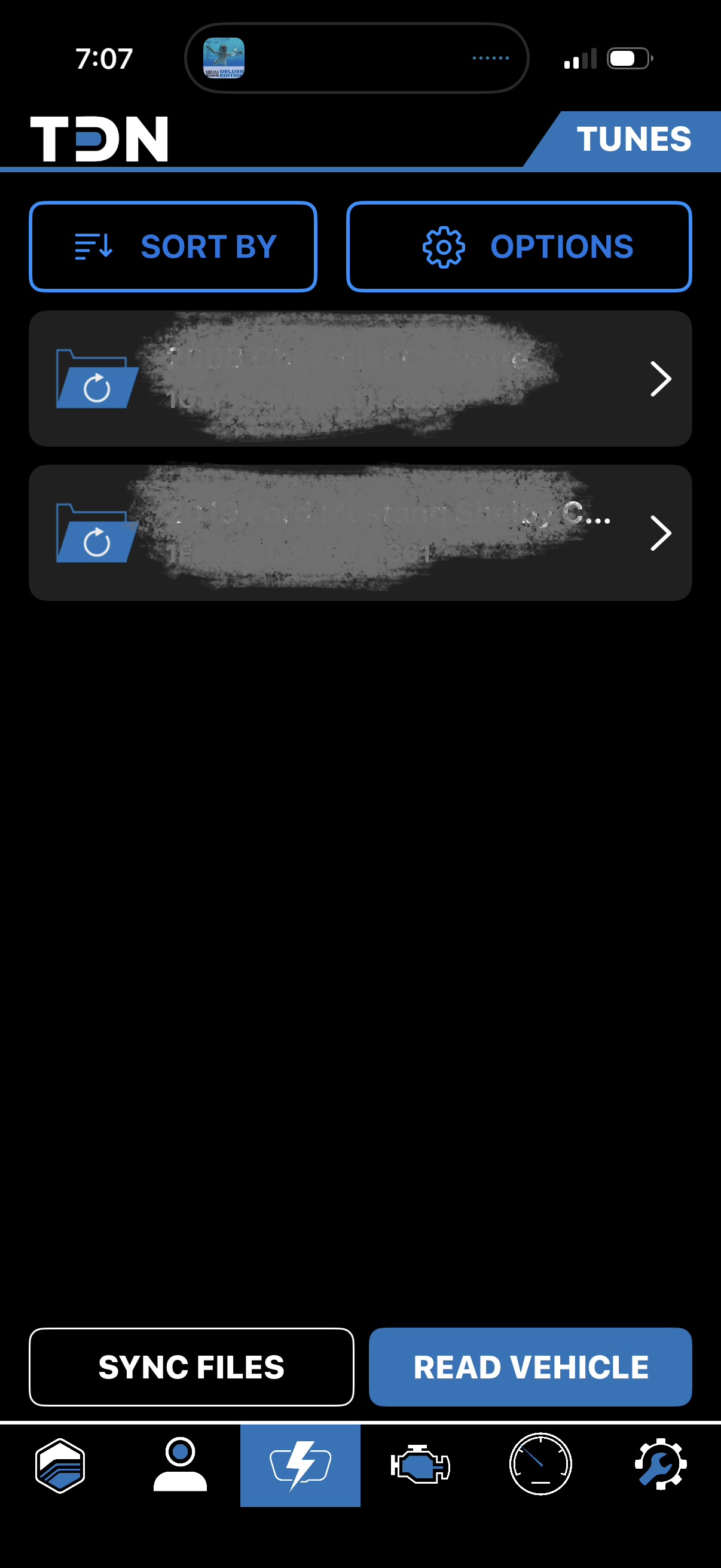
Go to the Tunes tab (the lightning icon). Tap READ VEHICLE in the bottom-right to start.
Any vehicles you've already read will be listed here for reference.
Put the vehicle in Service Mode
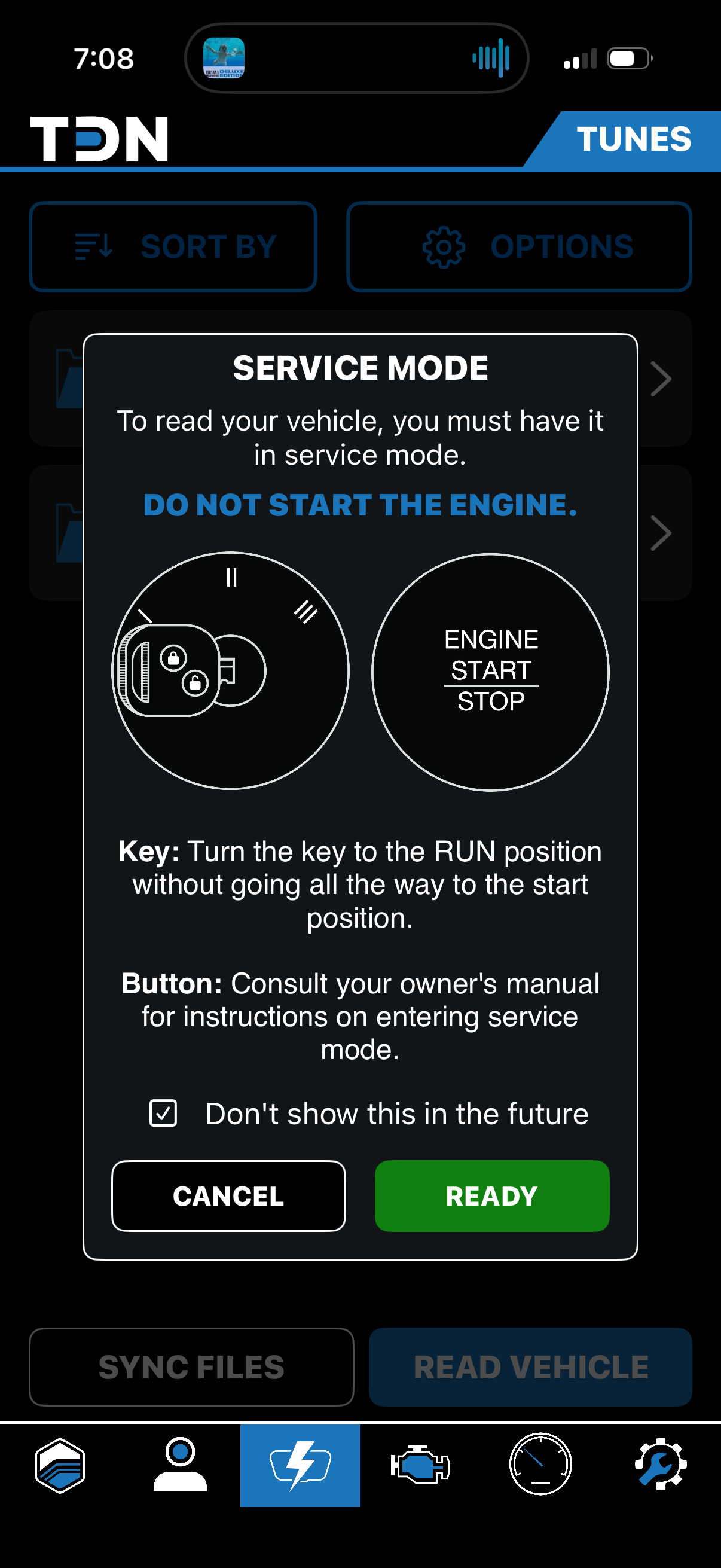
Turn the key (or press the button without your foot on the brake) to the RUN position -- the dash lights up but the engine stays off.
Do NOT start the engine.
When the dash is on and the engine is off, tap READY.
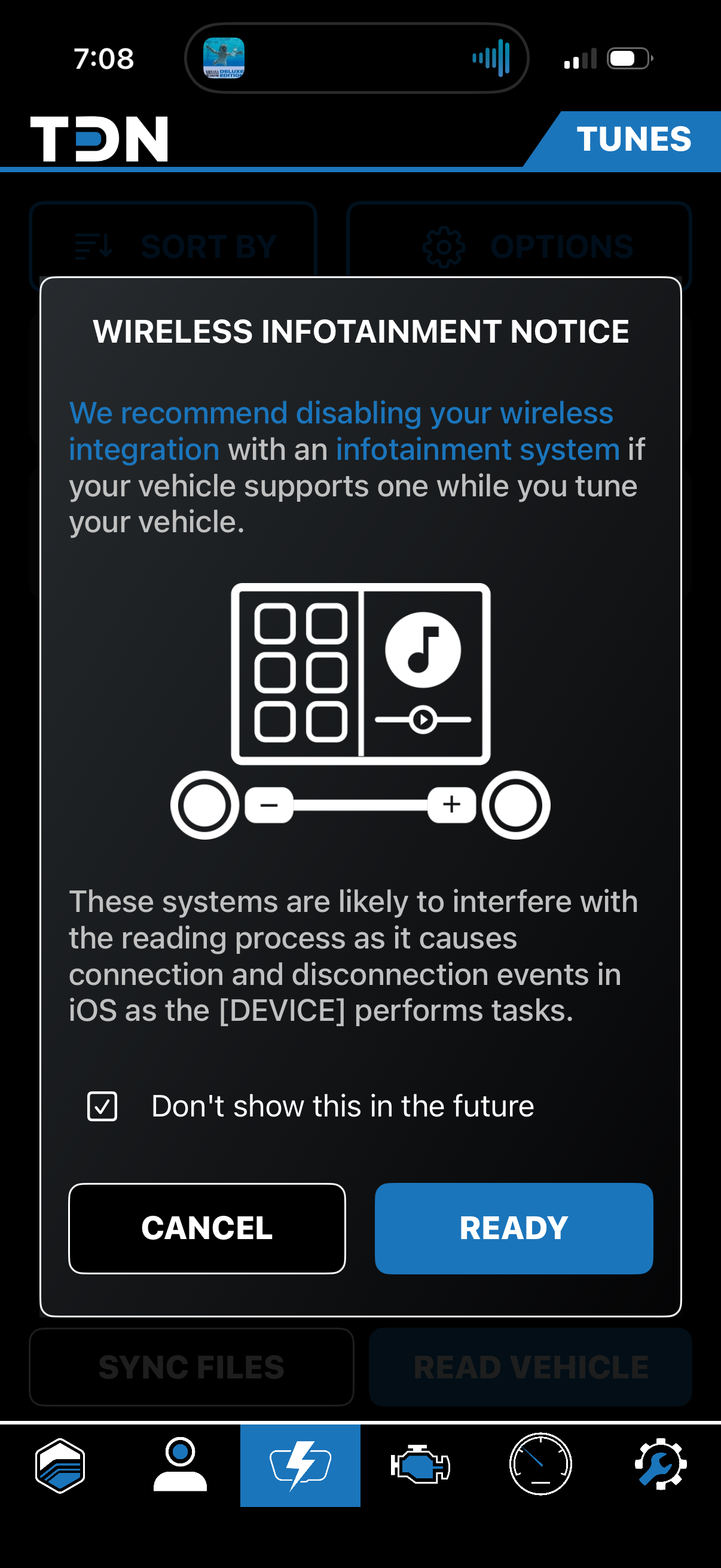
Disable wireless if your car has an infotainment screen
The app may warn that a connected infotainment system can interfere with the read. If your vehicle has one, it's best to turn off wireless / phone integration for now. Tap READY to continue.
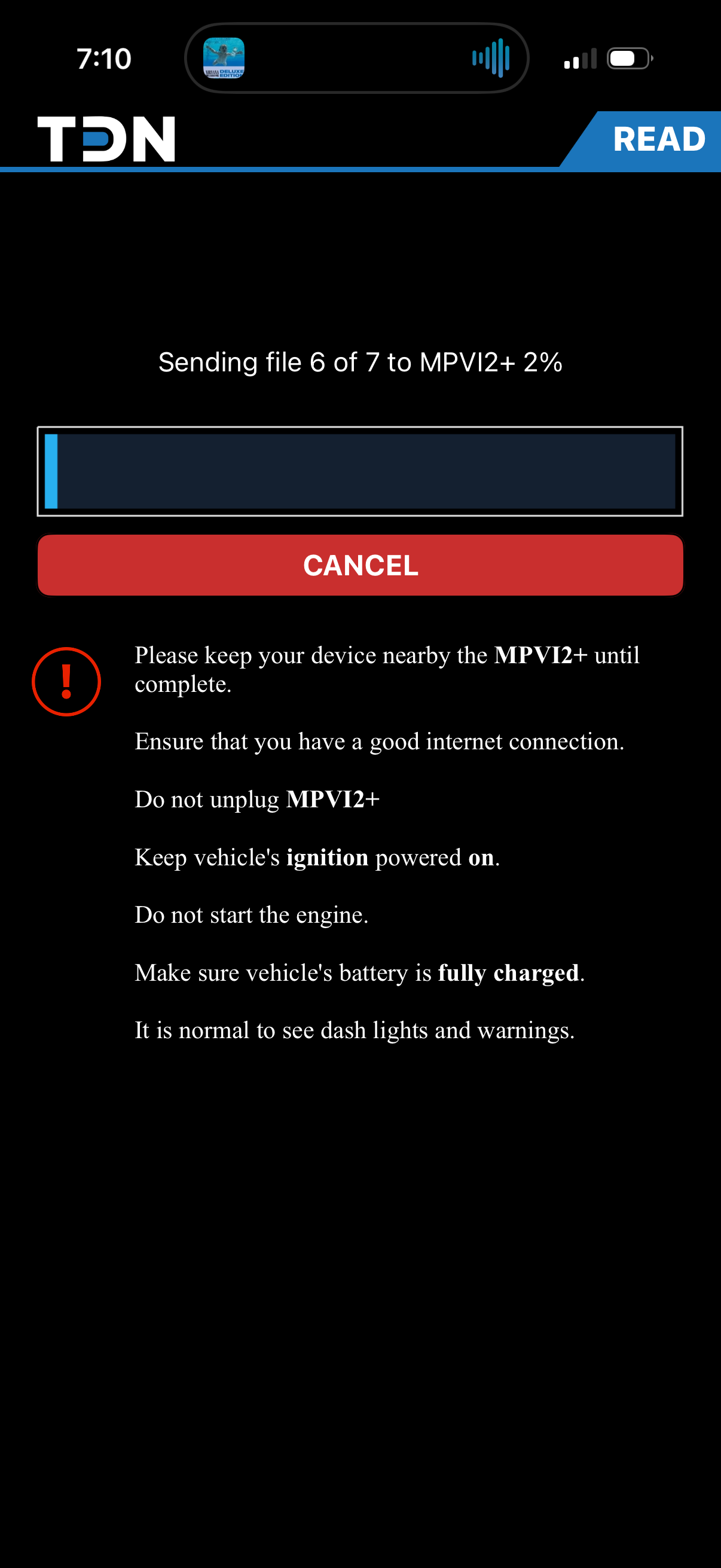
The app loads your device
You'll see Sending file X of Y to your interface. This just gets the device ready. Keep your phone near the interface and stay connected to the internet.
It reads your vehicle
Now it pulls the current tune off your vehicle and shows a progress bar and time remaining. It also identifies your ECU (for example, E38, GM Gen4 V8).
Keep the ignition on, leave the engine off, and don't unplug the interface.
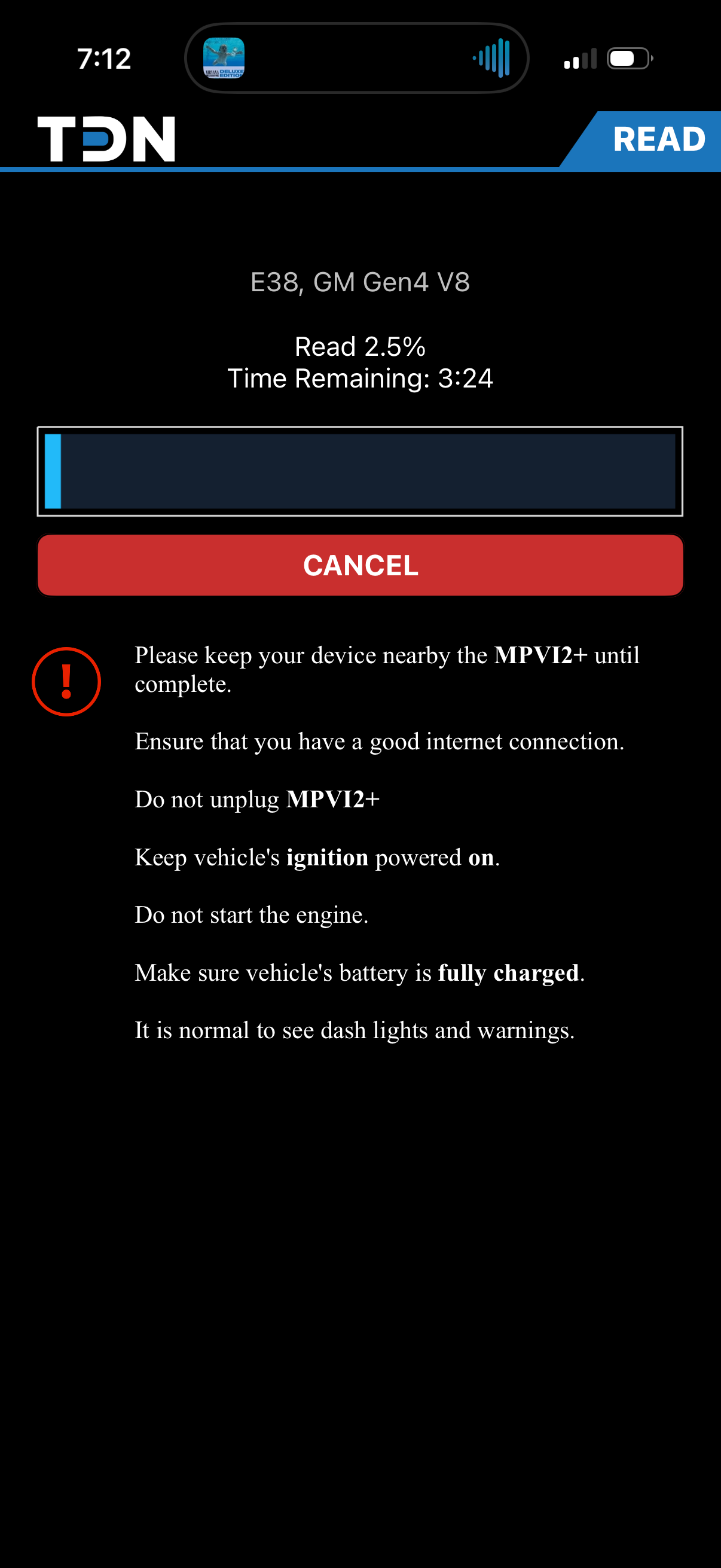
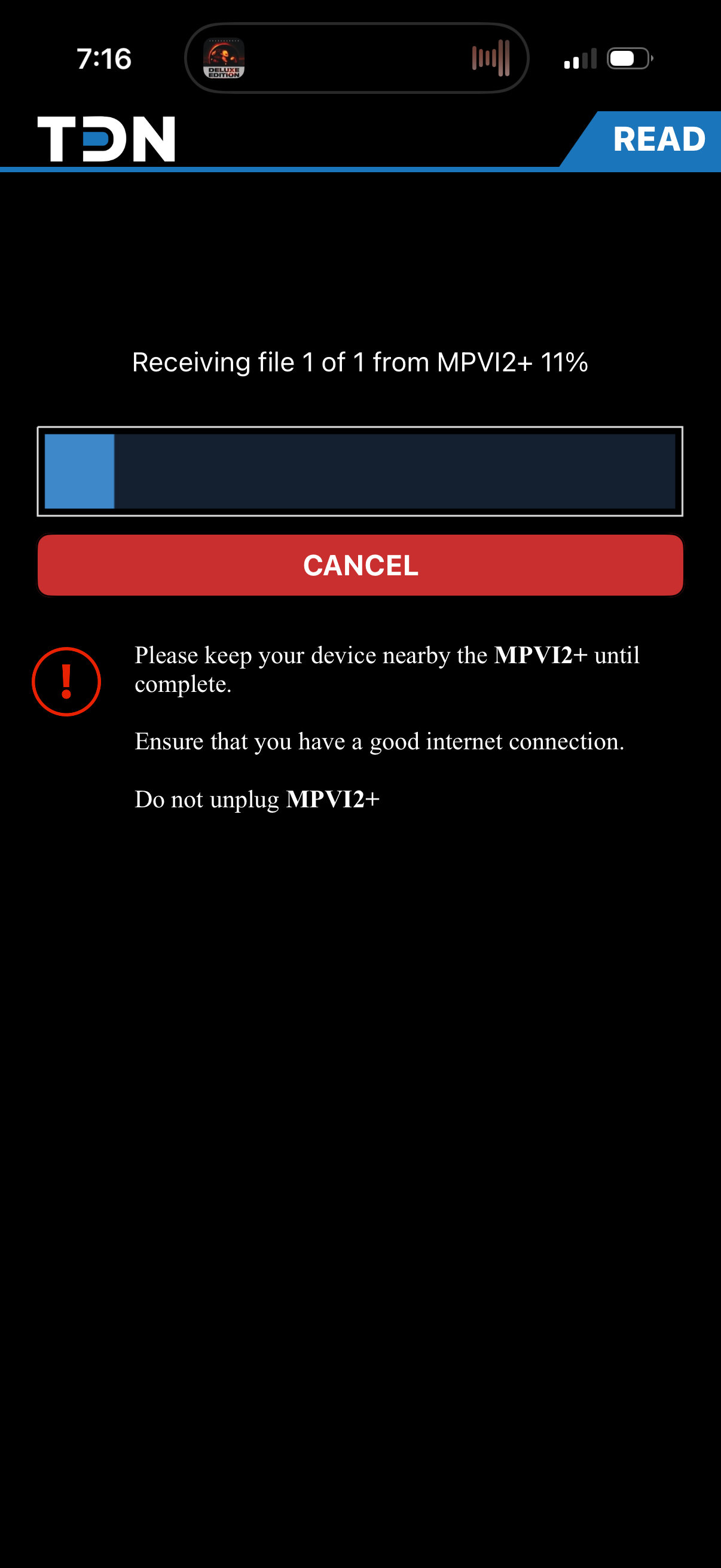
The read transfers back to your phone
When the vehicle read finishes, the app pulls the file back from your interface (Receiving file). Almost done -- just let it finish.
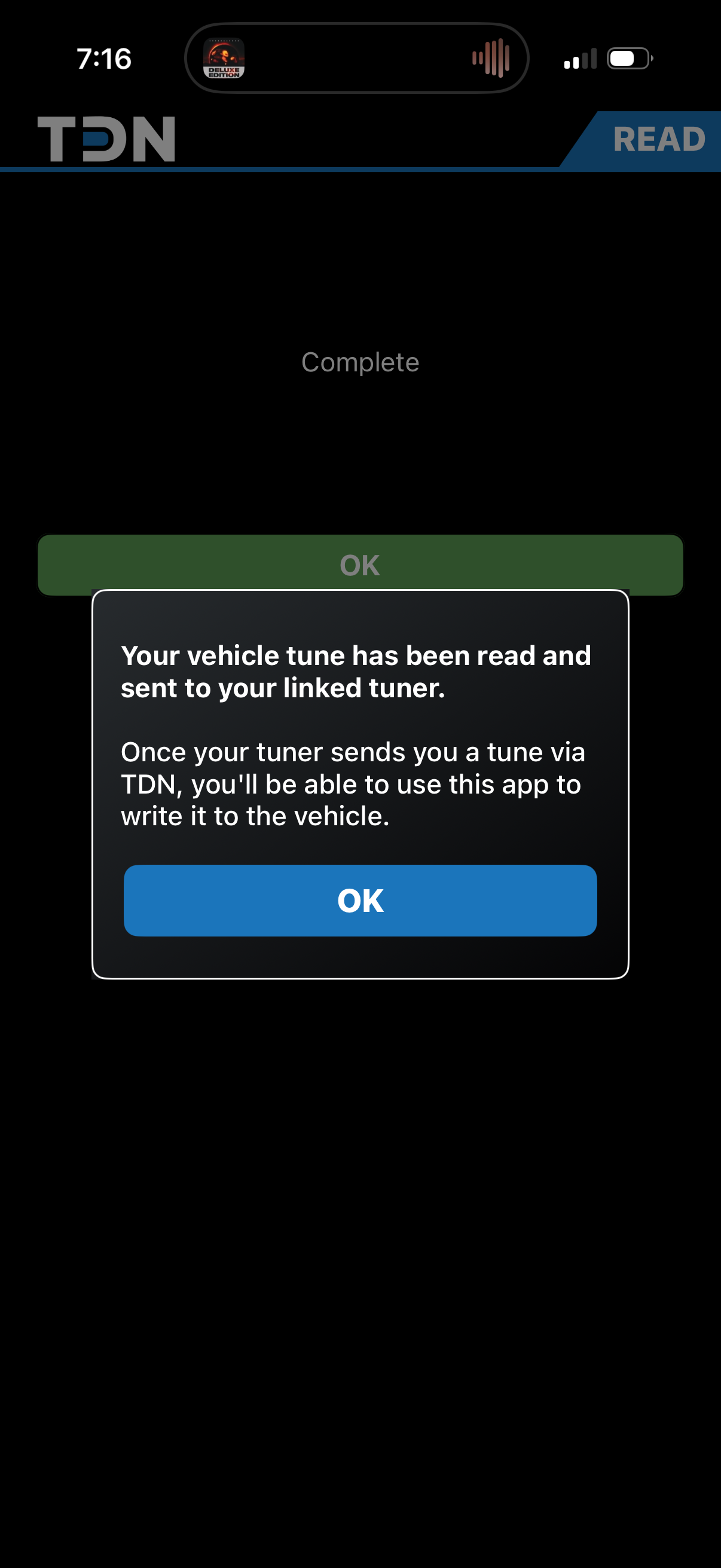
Complete -- it's on its way to your tuner
You'll see Complete, and a message confirming your tune was read and sent to your linked tuner. That's it -- you're done on your end for now.
Quick checklist
- ✓ Battery fully charged, or a charger connected to the vehicle
- ✓ Ignition in RUN / Service Mode -- engine OFF
- ✓ Interface plugged firmly into the OBD-II port
- ✓ Phone close to the interface with a solid internet connection
- ✓ Don't unplug the device or close the app mid-transfer
- ✓ Dash warning lights during a read or write are normal
Common questions
Where do I get my invite code?
It says "request pending" -- what now?
Do I need credits?
The read failed or got stuck. What should I check?
Can I drive while it reads?
Return to text2tune